
RF430FRL152HEVM
This document is a description of the RF430FRL152HEVM product that is designed to fully explore all of the capabilities that the RF430FRL152H device offers. To more easily experiment with all of the features of the device and the firmware that is in the ROM, a PC application is available, and its use is also described here, including software and driver installation.
1 Introduction
The RF430FRL152HEVM, including the user software, is a complete evaluation platform to evaluate the key features of the of the RF430FRL15xH devices:
• Passive communication and sensor measurement using ISO/IEC 15693
• Can program user code to FRAM memory through JTAG
• Collect sensor measurements over I 2C using the Sensor Hub BoosterPack™ plug-in module (BOOSTXL-SENSHUB)
• Can develop drivers for custom digital sensors
• Interfaces with the PC GUI application to fully experiment with application functionality
1.1 Overview
To start evaluating the RF430FRL152H device, an RF430FRL152HEVM is available. This evaluation board allows you to experiment with all of the capabilities of the low-voltage (1.5-V) dynamic tag with an MSP430™ core.
Because this dynamic tag uses ISO/IEC 15693 (NFC-capable) passive communication, it needs an ISO/IEC 15693 reader/writer to explore its full capabilities. To evaluate the device, TI recommends that you use the MSP-EXP430G2 LaunchPad development kit with the TRF7970A BoosterPack plug-in module and the PC application for the RF430FRL152HEVM. Alternate options include the TRF7970AEVM (which is no longer available from TI) or a custom NFC/RFID-capable handset. Features and benefits of the RF430FRL152H MCU include:
• ISO/IEC 15693 RF interface
• Low-voltage MSP430 MCU (L092 based)
• Nonvolatile low-power FRAM memory (2KB)
• Sigma-delta 14-bit analog-to-digital converter
• Single-cell battery (1.5-V) operation
• Can run batteryless from RF scavenged energy provided by NFC/RFID reader
• Supports temperature measurement using a thermistor
• Single-chip solution for a contact-less sensor
The RF430FRL152HEVM is a development platform to evaluate the capabilities of the RF430FRL15xH devices and allows experimenting with all the features of the RF430FRL152H.
• Integrated PCB antenna
• Power over RF, battery, or USB
• Onboard thermistor and reference resistor for temperature measurement
• Onboard light sensor
• NFC/RFID ISO 15693 communication with NFC/RFID enabled reader/writer or smart phone
• Connector to enable compatibility with TI LaunchPad™ development kits and BoosterPack plug-in modules
• JTAG header for connection of MSP430-FET Emulation tool for programming
1.2 What is Included
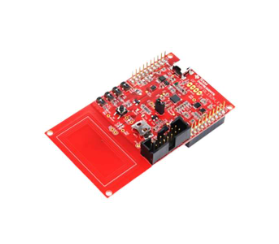
• RF430FRL152HEVM (see Figure 1)
• USB cable
• Quick start guide
1.2.1 RF430FRL152HEVM
Figure 1 shows an RF430FRL152HEVM.
1.3 Required Additional Tools
• RF430FRL152HEVM Windows GUI
• TRF7970A-BNDL: MSP-EXP430G2 LaunchPad development kit with TRF7970A BoosterPack plug-in module to communicate with the RF430FRL152HEVM OR
• TRF7970AEVM (no longer available for purchase from TI)
1.3.1 MSP-EXP430G2 LaunchPad Development Kit With TRF7970A BoosterPack Plug-in Module
The TRF7970A-BNDL bundle is the recommended evaluation method and it is fully supported by the latest version of the RF430FRL152HEVM PC GUI.
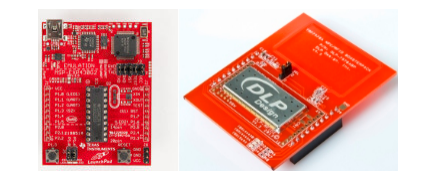
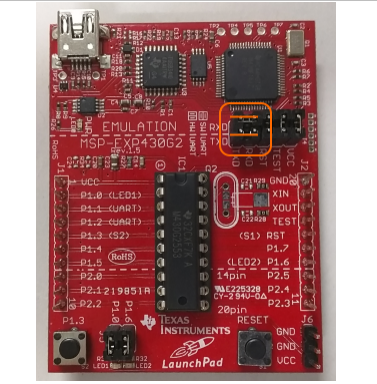
TI recommends using a tool like UniFlash to easily program the MSP430 MCU with the binary image. Make sure to configure the jumpers as shown in Figure 3, for "HW UART".
1.3.2 TRF7970AEVM
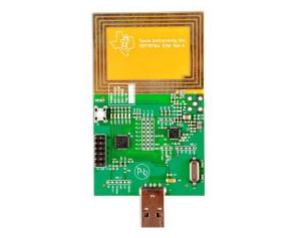
Figure 4 shows a TRF7970AEVM. If the TRF7970AEVM firmware has not been changed since purchase, no code updates are necessary. If there are communication issues with the RF430FRL152HEVM, make sure that the TRF7970AEVM is programmed with the default EVM firmware, which can be downloaded from http://www.ti.com/lit/zip/sloc300.
1.4 Recommended Additional Equipment
Optional recommended equipment:
• SensorHub Booster Pack
• MSP430 FET tool for code development, programming and debugging the device over JTAG
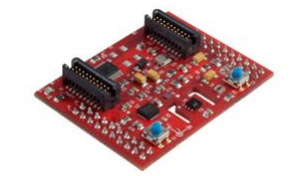
1.4.1 Sensor Hub BoosterPack Plug-in Module
Figure 5 shows the Sensor Hub BoosterPack plug-in module. This EVM has temperature, humidity, and light sensors. There is demo firmware showing how to use each of these sensors. This board can be used as a reference to develop custom functionality for digital sensors in an application.
1.5 Installation of the Software and Drivers
The most recent PC GUI and user's guide are available at www.ti.com/tool/RF430FRL152HEVM. To install the PC GUI:
1. Download the RF430FRL152HEVM Windows GUI file to the PC.
2. Run the executable and follow the prompts to install the software.
3. To run the application click on the Start menu, All Programs, then the Texas Instruments folder, then the "RF430FRL152HEVM Application" and finally the "RF430FRL152H GUI Interface" program.
The USB drivers for the TRF7970AEVM are available from the Silicon Labs website.
1.6 Update the EVM Firmware
The RF430FRL152HEVM comes loaded with firmware. However, updated firmware with fixes for the latest known erratas is available. Download this firmware from www.ti.com/lit/zip/slac691, and load the SensorHub example to have the same functionality as in the EVM.
2 Hardware Description
2.1 Block Diagram
Figure 6 shows the EVM block diagram.
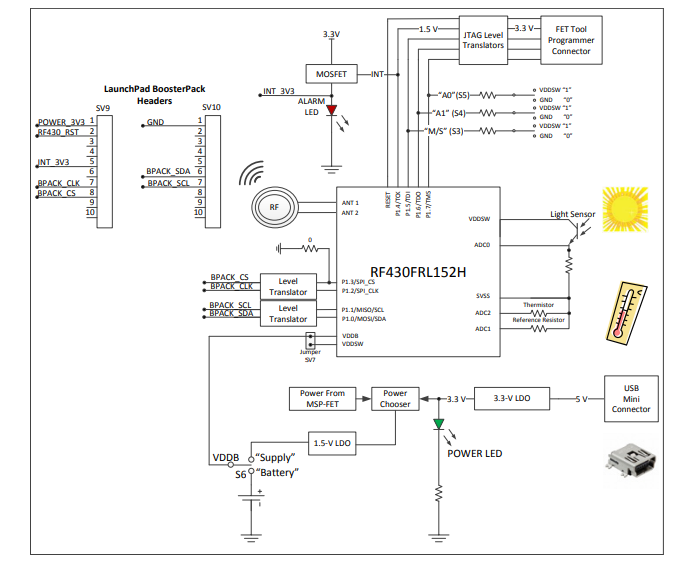
• The EVM board can be powered by RF scavenged energy, battery, FET emulator tool, or USB power. When powered through the USB connection or an MSP-FET emulation tool, switch S6 must be set to "Supply". If the EVM is powered by scavenged RF energy or a battery, switch S6 must be set to "Battery".
• Level translators are used on I 2C, SPI, and FET emulator interfaces.
• The power (green) LED should turns on only when the board is powered by a USB connection.
• Jumper SV7 is needed to bypass the internal battery switch and provide power directly to the core. This jumper should be populated for most use cases.
• When the EVM is powered by the USB connection, the Alarm LED briefly flashes at power-up or stays illuminated if there is an interrupt from the RF430FRL152H. It is normal for the Alarm LED to stay lit during
2.2 Hardware Overview
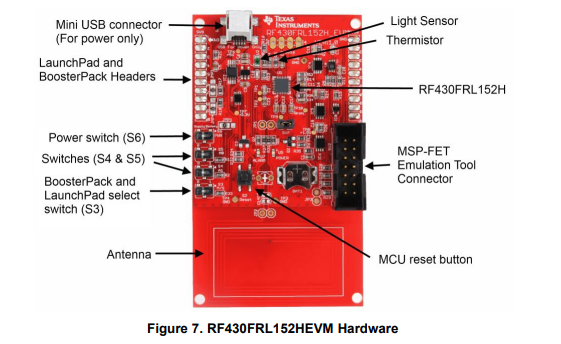
Figure 7 shows an overview of the RF430FRL152HEVM hardware
2.3 Hardware Configuration
2.3.1 Passive (Unpowered) Operation
In this mode, the RF430FRL152H is powered entirely from the RF field generated by the reader.
1. Set S6 to "Battery".
2. Set S3 to "S" (slave mode).
3. Make sure that USB and the MSP-FET emulation tool are not connected. 4. Place the EVM antenna on top of a NFC reader/writer to communicate.
Neither the "Alarm" or the "Power" LEDs illuminate in this mode of operation at any time. At this time a NFC/RFID reader may be used to communicate to the RF430FRL152HEVM.
2.3.2 Debugging or Programming
The following instructions show how to program the FRAM memory or debug the RF430FRL152H using a MSP-FET emulation tool. In this configuration the EVM is powered by the MSP-FET emulation tool.
1. Set switch S6 (near the BoosterPack plug-in module headers) to "Supply".
2. Connect the MSP-FET430 emulation tool to the JTAG header, SV2.
3. Start a debug session using IAR or CSS IDE.
4. Connection with the USB cable is not necessary for debugging or programming the RF430FRL152H.
Note: The Alarm LED may be illuminated during the debugging process if the USB cable is connected. This is normal behavior.
Note: If the USB cable is not connected, the power LED (U5) and the Alarm LED (7) are not illuminated even if the emulation tool is connected. This is normal behavior.
The MSP-FET emulation tool can be used to program or debug the EVM at this point.
2.3.3 Using a BoosterPack Plug-in Module or Digital Sensors
An example of this use case is using the Sensor Hub BoosterPack plug-in module. In this configuration the EVM is powered by the USB connection.
1. Set switch S6 (near the BoosterPack plug-in module headers) to "Supply".
2. Set switch S3 to "M" (master mode).
3. Attach the BoosterPack plug-in module on top of the EVM, making sure it is in the correct orientation (pin 1 on the EVM matches pin 1 on the BoosterPack plug-in module headers).
4. Connect the USB cable to either the BoosterPack plug-in module or the RF430FRL152HEVM. Note: When the USB cable is attached, the power LED (U5) stays illuminated. The Alarm LED (U7) should momentarily illuminate and then turn off.
Now the TRF7970AEVM can be used to communicate to the part and initiate samples of the various sensors.
2.3.4 Using a Host Controller
In this mode, the host LaunchPad development kit is connected underneath the RF430FRL152HEVM. Make sure the orientations match.
1. Set switch S6 (near the BoosterPack plug-in module headers) to "Supply" setting.
2. Set S3 to "S" (slave mode).
3. For a host that uses I 2C, S5 and S4 determine the two least significant bits of the I 2C slave address for the RF430FRL152H. For most cases, set these switches to the "0" positions.
4. For a host that uses SPI, S5 and S4 determine the SPI mode. For most cases, set these switches to the "0" positions.
5. Set S5 or S4 to desired setting at this time.
6. Connect the LaunchPad development kit and the EVM together.
7. Power either the LaunchPad development kit or the EVM by connecting either to a USB cable.
Note: When the USB cable is attached, the power LED (U5) stay illuminated. The Alarm LED (U7) should momentarily illuminate and then turn off.
2.3.5 Powering the EVM Using a Battery
1. Insert an SR66 1.5-V battery into the battery holder (BAT1).
2. Note: The first time that a battery is inserted, the battery holder may be tight. Carefully holding the board with a flat object, firmly slide in the battery. Make sure that the positive side of the battery is facing the positive (or top) side of the battery holder.
3. Set S6 to "Battery".
4. If the battery switch is open (the battery switch is inside the RF430FRL152H), SV7 needs to have a jumper to power the part. If the battery switch is closed, then SV7 does not need a jumper to power the RF430FRL152H.
Note: In this mode, the alarm and power LEDs are not illuminated. The device is still powered and operational.
Note: Also if S5, S4, or S3 positions are changed after powering the EVM, a reset is required for the changed settings to take effect. This can be done through the PC GUI or by pressing the reset switch (S2).
Note: If a battery is installed and another configuration (for example, debugging or using a BoosterPack plug-in module) is required, set switch S6 to "Supply" to disconnect the battery and not drain it.
Note: If a battery is installed and another configuration (for example, debugging or using a BoosterPack plug-in module) is required, set switch S6 to "Supply" to disconnect the battery and not drain it.
- LP8557IEVM_TI(德州仪器)中文资料_英文资料_价格_PDF手册
- LAUNCHXL-F28027F TI(德州仪器)中文资料_英文资料_价格_PDF手册
- DLPDLCR160CPEVM DLP160CP TI(德州仪器)中文资料_英文资料_价格_PDF手册
- THS4631DDAEVM TI(德州仪器)中文资料_英文资料_价格_PDF手册
- DAC3482EVM TI(德州仪器)中文资料_英文资料_价格_PDF手册
- THS4302EVM TI(德州仪器)中文资料_英文资料_价格_PDF手册
- ADS7038Q1EVM-PDK_TI(德州仪器)中文资料_英文资料_价格_PDF手册
- LM3450AEV230V30/NOPB_TI(德州仪器)中文资料_英文资料_价格_PDF手册
- TPS72728DSEEVM-406_TI(德州仪器)中文资料_英文资料_价格_PDF手册
- WL1835MODCOM8A_TI(德州仪器)中文资料_英文资料_价格_PDF手册
- TAS5424BQ1DKDEVM_TI(德州仪器)中文资料_英文资料_价格_PDF手册
- ADS7042EVM-PDK_TI(德州仪器)中文资料_英文资料_价格_PDF手册
- TMDS570LS31HDK_TI(德州仪器)中文资料_英文资料_价格_PDF手册
- VCA8500BOARD_TI(德州仪器)中文资料_英文资料_价格_PDF手册
- DEM-SOT223LDO_TI(德州仪器)中文资料_英文资料_价格_PDF手册
 工商网监
工商网监